Create Videos with AI from Script to Final Cut
Produce a polished video -- explainer, product demo, YouTube content, or social media clip -- without a camera, studio, or video editing experience. AI handles scriptwriting, voiceover generation, visual creation, and even basic editing. You go from an idea to a shareable video in under two hours. This workflow covers text-to-video generation, AI avatars, AI voiceovers, and automated editing so you can pick the approach that fits your project and budget.
Tools You'll Need

- 1
Write a Video Script with AI
Every good video starts with a tight script. AI can draft one in minutes, but you need to give it the right structure -- hook, body, CTA -- tailored to your video format and platform.
Write a video script for me. Here are the details:

- Video type: [explainer video / product demo / YouTube tutorial / social media short / course lesson / testimonial-style]
- Topic: [e.g., 'How our app saves freelancers 5 hours per week on invoicing']
- Target length: [30 seconds / 60 seconds / 2-3 minutes / 5-8 minutes / 10+ minutes]
- Target audience: [e.g., freelance designers who currently use spreadsheets to track invoices]
- Platform: [YouTube / Instagram Reels / TikTok / LinkedIn / Website landing page / Course platform]
- Tone: [e.g., professional but not stiff, a knowledgeable friend explaining something useful]
- Key message: [the ONE thing viewers should remember, e.g., 'You're losing $X/month to unpaid invoices because your process has no follow-up system']
- CTA: [what should viewers do after watching? Sign up, visit website, follow, share?]

Script format requirements:
- Start with a HOOK (first 3-5 seconds) that stops the scroll. No 'Hey guys!' or 'In this video, I'll show you...' — jump straight into the most interesting part.
- Include [VISUAL DIRECTION] notes in brackets describing what should be on screen during each section
- Include [B-ROLL] suggestions where supplementary footage would help
- Include [TEXT OVERLAY] notes for key points that should appear as text on screen
- Mark natural CUT points where the video should transition
- End with a clear CTA and a memorable closing line (not 'thanks for watching')
- Include approximate timestamps for each section

Word count guide: ~150 words per minute of finished video.

Write two versions of the hook so I can A/B test which performs better.
Tip: The hook is 80% of your video's success. If someone doesn't stop scrolling in the first 2-3 seconds, nothing else matters. Test your hook by reading it to someone without context — if they say 'wait, tell me more,' you've nailed it. If they shrug, rewrite it.
- 2
Generate AI Voiceover or Choose an Avatar
Decide your delivery method: AI voiceover (narration over visuals), AI avatar (a digital presenter), or text-on-screen only. Each has trade-offs in cost, realism, and production speed.
I need to produce audio/presentation for my video. Help me choose and set up the right approach.

My script: [paste your final script from Step 1]
My budget: [free / under $30 / under $100 / flexible]
My comfort with appearing on camera: [not at all / I have existing footage of myself / I'm fine being on camera]

Evaluate these options for my specific video:

1. **AI Voiceover (ElevenLabs/Murf)**: Best for explainers, tutorials, product demos. Narration plays over visuals.
   - Recommend a voice style that matches my tone: [professional, warm, energetic, calm]
   - Should I use a male or female voice for this audience?
   - How should I mark emphasis, pauses, and pacing in the script for natural delivery?

2. **AI Avatar (HeyGen/Synthesia)**: Best for training videos, corporate content, course material. A digital person presents on screen.
   - Which avatar style fits: corporate/professional, casual/approachable, or custom (clone my voice/face)?
   - Should the avatar be full-body, waist-up, or head-shot?
   - What background should I use?

3. **Text-on-Screen + Music**: Best for social media shorts, quick tips, memes. No voice at all.
   - Suggest a text animation style
   - Recommend music mood and tempo
   - How should I pace the text reveals?

For my chosen approach, give me:
- Exact settings to use in the tool (speaking speed, emotion level, pitch)
- How to break my script into segments for the most natural delivery
- Common mistakes to avoid (e.g., AI voices sound robotic on long sentences — break them up)
Tip: ElevenLabs voices are the most natural-sounding as of 2026, but they charge per character. For scripts over 1,000 words, the cost adds up. Draft your script to be tight — every unnecessary word costs money and attention. If you're on a budget, use the free tier to test voice selection before committing to full generation.
- 3
Create Visuals: AI Video Generation or Stock + Motion Graphics
Generate the visual layer of your video. You have two paths: AI text-to-video generation (Runway, Pika, Sora) for custom footage, or AI-assisted editing with stock footage and motion graphics (Canva, CapCut, Descript).
I need to create visuals for my video. Here's my script with visual direction notes:

[Paste your script with [VISUAL DIRECTION] notes]

For each section of the script, suggest the best visual approach:

**Option A — AI-Generated Footage (Runway/Sora)**:
Write a text-to-video prompt for each [VISUAL DIRECTION] note. Format:
- Scene description (what's happening)
- Camera angle and movement (static, pan, zoom, tracking shot)
- Lighting and mood (warm natural light, dramatic shadows, bright and clean)
- Duration (2-5 seconds per clip is ideal for AI video)
- Style (photorealistic, cinematic, motion graphics, animated)

Example: "A freelancer sitting at a clean desk with a MacBook, checking their phone and smiling as a payment notification appears. Camera: slow push-in from medium shot. Lighting: warm golden hour from a window. Duration: 4 seconds. Style: photorealistic."

**Option B — Stock + Motion Graphics**:
For each section, suggest:
- Stock footage search terms (be specific, e.g., 'overhead shot freelancer laptop coffee' not just 'person working')
- Text overlay or motion graphic to add
- Transition type between sections

**Option C — Screen Recording + AI Enhancement**:
For product demos or tutorials:
- Which screens to record and in what order
- Where to add zoom-ins, highlights, or callouts
- How to handle mouse movements (slow and deliberate for clarity)

Also suggest:
- Aspect ratio for my target platform ([16:9 for YouTube, 9:16 for Reels/TikTok, 1:1 for LinkedIn])
- A color grading/filter direction that matches my brand
- Background music genre and energy level for each section
Tip: AI-generated video clips work best at 2-5 seconds. Longer clips tend to have visual artifacts or unnatural movements. Plan your video as a series of short clips rather than one long continuous shot. This actually matches how professional videos are edited anyway — quick cuts keep viewers engaged.
- 4
Edit and Assemble the Final Video
Bring together your voiceover/avatar, visuals, text overlays, music, and transitions into a polished final video. AI editing tools can handle most of the assembly automatically.
I'm assembling my final video. Help me plan the edit and catch common mistakes before I export.

Video components I have:
- Script/voiceover: [AI voiceover / AI avatar / text-only]
- Visual clips: [X clips from AI generation / stock footage / screen recordings]
- Target length: [e.g., 3 minutes]
- Platform: [e.g., YouTube]

Create an editing plan:

1. **Assembly Order**: List every clip in sequence with:
   - Clip number and description
   - Duration
   - Corresponding voiceover/script timestamp
   - Transition to next clip (cut, crossfade, zoom, swipe)
   - Any text overlay or lower-third to add

2. **Pacing Check**:
   - Flag any section that stays on the same visual for more than 5 seconds (attention killer)
   - Flag any section where cuts happen faster than every 2 seconds (disorienting)
   - Suggest where to add a beat/pause for emphasis

3. **Audio Layers**:
   - Background music: When should it start, swell, and fade? (Usually: start at 30% volume, duck under voiceover, swell during transitions and emotional moments, fade out at CTA)
   - Sound effects: Suggest 3-5 subtle SFX that would enhance specific moments (whoosh for transitions, soft ding for key points, typing sounds for demo sections)

4. **Quality Checklist Before Export**:
   - Audio levels consistent throughout? (voiceover should be -6 to -3 dB, music -18 to -12 dB)
   - No awkward jump cuts or visual glitches?
   - Text on screen long enough to read? (Minimum 3 seconds for short text, 5 seconds for longer)
   - CTA is clear and stays on screen at least 5 seconds?
   - Thumbnail-worthy frame exists in the first 30 seconds?

5. **Export Settings** for [my target platform]:
   - Resolution, frame rate, bitrate, file format
   - Any platform-specific requirements (safe zones for TikTok UI, YouTube end screen space)
Tip: Descript is the easiest AI editor for beginners because you edit the video by editing the transcript — delete a word from the text, and it removes that segment from the video. No timeline scrubbing required. It also auto-removes filler words ('um,' 'uh,' 'like') with one click.
- 5
Add Captions, Thumbnails, and Platform Optimization
The final 10% that separates amateur videos from professional ones: burned-in captions (85% of social media video is watched on mute), a click-worthy thumbnail, and platform-specific metadata.
My video is assembled. Now I need to add the final polish for maximum performance on [platform].

1. **Captions/Subtitles**:
   - Generate SRT subtitle file from my script
   - Caption style recommendation: [font, size, position, background style]
   - For social media: should I use word-by-word animated captions (TikTok style) or sentence-based subtitles (YouTube style)?
   - Highlight key words in a different color for emphasis

2. **Thumbnail** (for YouTube/course platforms):
   Write a thumbnail design brief:
   - Text on thumbnail (3-5 words max, the hook, not the title)
   - Emotion/facial expression if featuring a person
   - Color palette that pops in a sea of other thumbnails
   - Layout (rule of thirds, text placement)
   - Midjourney/DALL-E prompt to generate a thumbnail background
   - Give me 3 thumbnail text options to A/B test

3. **Title and Description** (for YouTube):
   - 3 title options (under 60 characters, includes target keyword, creates curiosity gap)
   - Description: first 2 lines visible without clicking 'show more' — make them count
   - Full description with timestamps, keywords, links, and relevant hashtags
   - 10-15 tags for YouTube search

4. **First Comment** (for YouTube/Instagram):
   - Write a pinned first comment that drives engagement (ask a specific question related to the video content)

5. **Cross-Platform Repurposing Plan**:
   - How to cut this video into 3-5 shorter clips for other platforms
   - Which sections make the best standalone shorts
   - What to change for each platform (aspect ratio, caption style, CTA)
Tip: Your thumbnail is more important than your video. On YouTube, CTR (click-through rate) determines whether your video gets recommended, and CTR is almost entirely driven by thumbnail + title. Spend as much time on your thumbnail as you did on the first 30 seconds of your video.
- 6
Review, Get Feedback, and Iterate
Before publishing, run your video through a structured review process. AI can catch technical issues and help you stress-test your content from the viewer's perspective.
I'm about to publish my video. Help me do a final review by answering these questions as if you were my target audience ([describe your target viewer]):

1. **First Impression Test**: Based on my thumbnail and title alone, would you click? Why or why not? What would make you more likely to click?

2. **Hook Test**: Read the first 5 seconds of my script. Are you hooked, or would you scroll past? Rate 1-10 and explain.

3. **Value Delivery**: After watching/reading the full script, did the video deliver on the promise of the hook and title? Where did you feel bored, confused, or like the video was padding?

4. **Pacing Feedback**: Mark any sections that felt:
   - Too fast (information overload)
   - Too slow (dragging, could be cut)
   - Just right

5. **CTA Effectiveness**: Is the call-to-action clear? Do you actually feel motivated to [take the desired action]? If not, what would make it more compelling?

6. **Competitor Comparison**: What would make someone choose this video over the top 3 videos already ranking for [your target keyword/topic] on YouTube?

7. **Improvement Priorities**: If I could only change 3 things to make this video significantly better, what would they be? Rank them by impact.

Be honest and specific. Vague praise is useless — tell me exactly where the video is weak.
Tip: Show your video to 3-5 people in your target audience before publishing. Watch them watch it — don't ask for feedback during, just observe where they look at their phone, fast-forward, or lose attention. Those moments are your weak points, regardless of what they say verbally.
 ChatGPT
  Claude
  CapCut
  Canva
Canva Recommended Tools for This Scenario
Runway
Freemium
Industry-leading AI video generation with Gen-3 Alpha model
- Gen-3 Alpha text-to-video and image-to-video generation
- Motion brush for directing movement in generated clips
- 30+ AI creative tools (inpainting, expand, remove background)
Synthesia
Paid
Enterprise AI avatar video platform trusted by Fortune 500 companies
- 230+ diverse AI avatars with natural expressions
- 140+ languages and accents with accurate lip-sync
- Custom avatar creation from video recording
HeyGen
Freemium
Leading AI avatar platform for business videos and multilingual dubbing
- 100+ photorealistic AI avatars with natural expressions
- Multilingual video translation with voice cloning and lip-sync
- Custom avatar creation from personal video recording
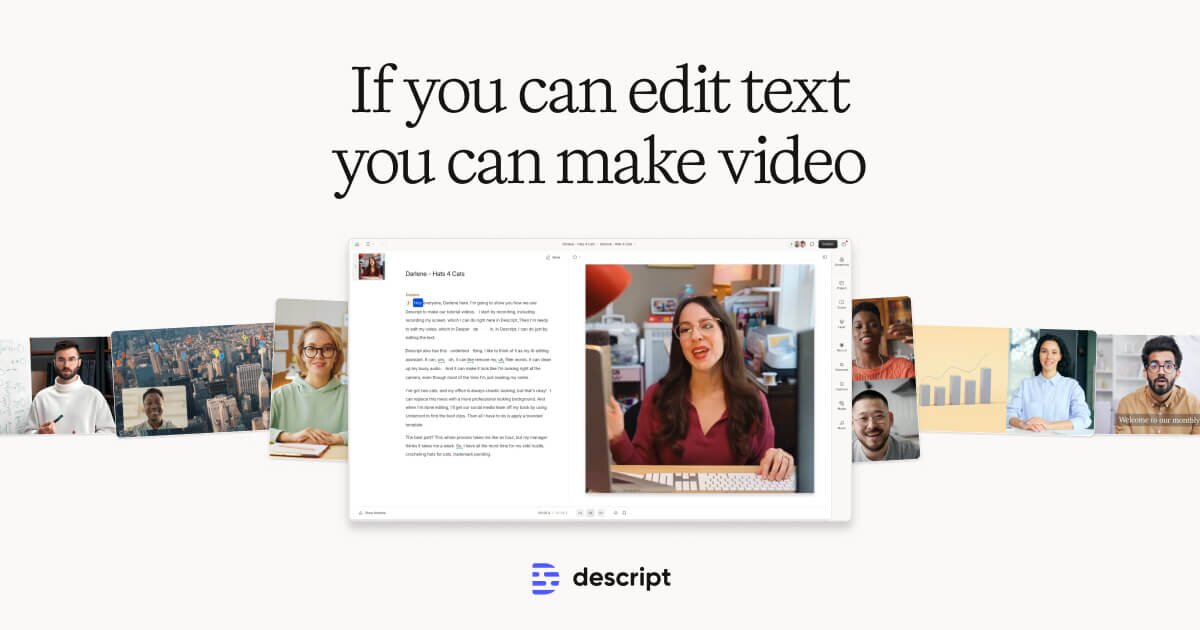
Descript
Freemium
Edit video by editing text — transcript-based video and podcast editor
- Transcript-based video and audio editing
- Automatic filler word detection and removal
- AI eye contact correction for webcam footage